Documentation
Your dashboard
The dashboard at byourside.ai/account is where you run your AI phone receptionist. Set up a number and assistant, see your calls and customers, manage your plan, and more. Here is a quick tour so you know where everything lives.
What is the dashboard?
The dashboard is your control panel for By Your Side. It is built for business owners, not engineers, so you can do everything from one place: get a phone number, set up the assistant that answers it, review what callers asked, and keep an eye on your plan. You do not need any technical knowledge to use it.
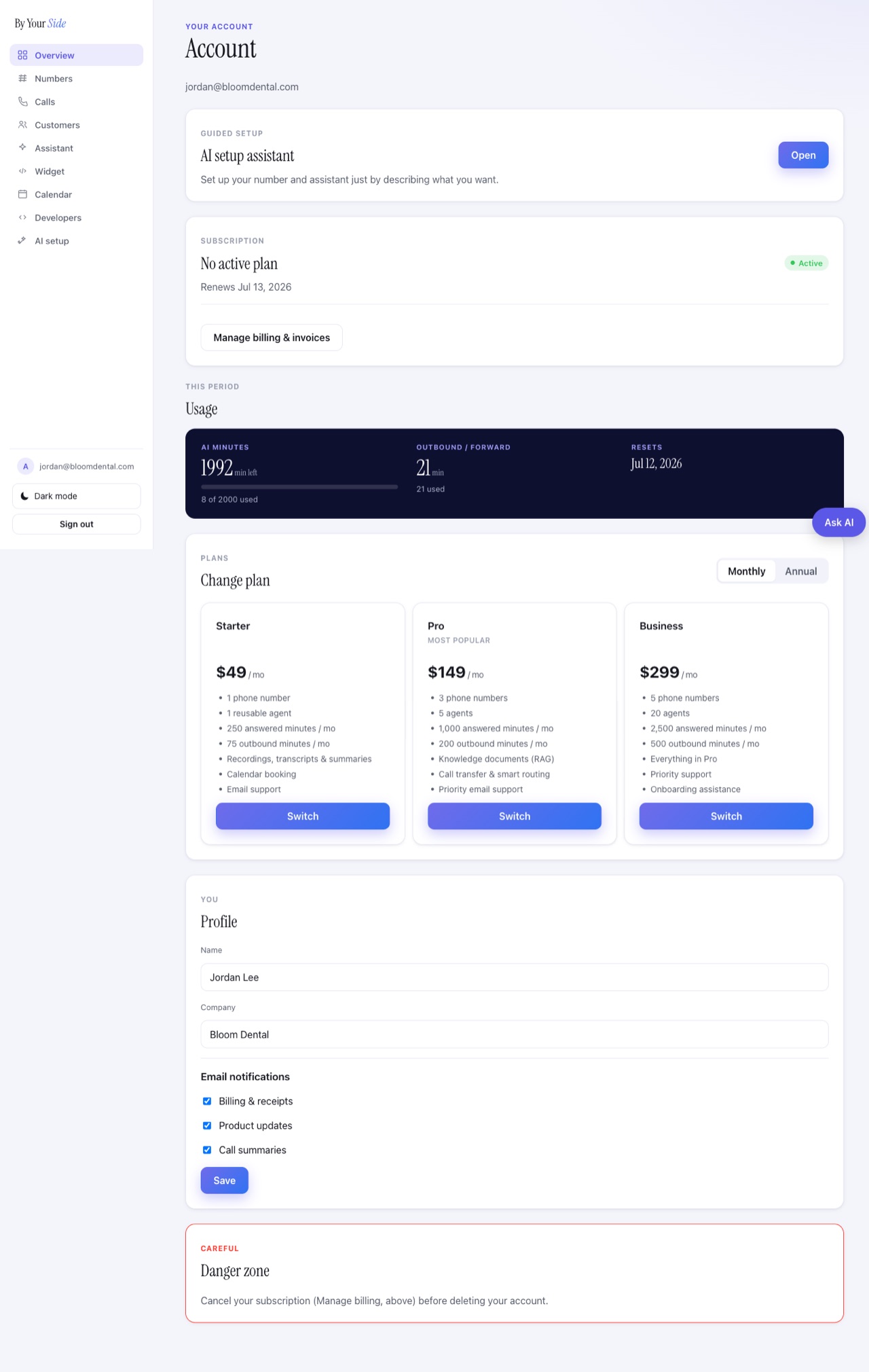
You reach it at byourside.ai/account. The first page you land on is your Overview, with your plan, usage, profile, and a shortcut to the AI setup assistant.
How do I sign in?
Open byourside.ai/account and sign in with your email and password. If you have not created an account yet, choose Create account, set a password, and confirm your email. Forgot your password? Type your email in the field, then tap Forgot password? and we will send you a reset link.
Your profile (your name, company, and which email notifications you receive, such as billing receipts, product updates, and call summaries) is edited on the Overview page, near the bottom. Your signed-in email also shows in the sidebar footer.
What is the fastest way to get going?
The quickest path is the AI setup assistant. Instead of clicking through settings, you just describe what you want in plain language, and it sets up a phone number and an assistant for you. It is the first card on your Overview page.
- Open the AI setup assistantOn your Overview page, find the AI setup assistant card and press Open. You can also reach it from AI setup in the sidebar.
- Describe what you wantTell it about your business and how the assistant should answer, in everyday words. For example, the kind of business you run, the area you want a number in, and what callers usually ask about.
- Let it set things upIt sets up a number and an assistant based on what you described. From there you can fine-tune anything in the individual sections below.
Prefer to do it by hand? You can. Set up your assistant in Assistant, add a number in Numbers, and add the website widget from Widget. The AI setup assistant just does the same steps faster.
What does each section do?
The sidebar on the left has one entry per part of your account. Here is what each one is for, and where to read more.
| Section | What it is for |
|---|---|
| Overview | Your plan, usage this period, profile, and the AI setup assistant shortcut. |
| Numbers | The phone numbers you own, and the place to add or manage them. |
| Assistant | Your assistant's name, voice, and the business knowledge it answers with. |
| Widget | The chat and click-to-call button for your website. See the widget guide. |
| Calls | Your call history, with recordings, transcripts, and summaries. |
| Customers | The people you have spoken with, so the assistant can remember them. |
| Calendar | Connect scheduling so the assistant can book appointments for you. |
| Developers | API keys and developer settings, if you or your team want to build on top. |
How do plans and usage work?
By Your Side has three plans: Starter, Pro, and Business. They differ in how many numbers and assistants you get and how many minutes are included each month. Your current plan and renewal date show at the top of the Overview page, and you can switch plans there using the Monthly or Annual toggle.
Two kinds of minutes
Your usage is metered in two separate buckets, both shown under Usage on Overview, with how much you have left this period and when it resets.
- AI minutes are the minutes your assistant spends answering inbound calls.
- Outbound / forward minutes are the minutes used when calls go out or are forwarded on to you.
Billing and invoices
Once you are on a paid plan, the Manage billing & invoices button on Overview opens your billing portal, where you can update your card, view invoices, and cancel if you ever need to.
Where are light mode, dark mode, and sign out?
At the bottom of the sidebar you will find the appearance toggle for switching between light and dark mode, and the Sign out button. These are available on every page of the dashboard, right below your signed-in email.
Common questions
Do I need to know how to code to use the dashboard?
No. Everything is designed for business owners. The AI setup assistant lets you set things up just by describing what you want, and the Developers section is optional, only there if you or your team want to build on the API.
What is the fastest way to start answering calls?
Open the AI setup assistant on your Overview page, describe your business in plain language, and let it set up a number and assistant for you. You can adjust the details afterward in the Assistant and Numbers sections.
Where do I see my call recordings and summaries?
In the Calls section. It holds your call history along with recordings, transcripts, and summaries for each call.
What is the difference between AI minutes and outbound minutes?
AI minutes are spent when your assistant answers inbound calls. Outbound and forward minutes are used when a call is placed out or forwarded on to you. They are tracked separately under Usage on your Overview page.
How do I change my plan or get an invoice?
On the Overview page you can switch between Starter, Pro, and Business, and toggle monthly or annual billing. Use Manage billing & invoices to update your payment method or download invoices.