Documentation
Connect a calendar
Connect a calendar and your assistant can offer your real open slots and book appointments straight onto your schedule, with no double-booking. Here is how to set it up.
How does the assistant book appointments?
Once you connect a calendar, your assistant reads your real availability before it offers a time. When a caller asks to book, it checks for open slots and writes the appointment straight onto the calendar you chose. Because it works from your live schedule, it will not offer a time you are already busy, so there is no double-booking.
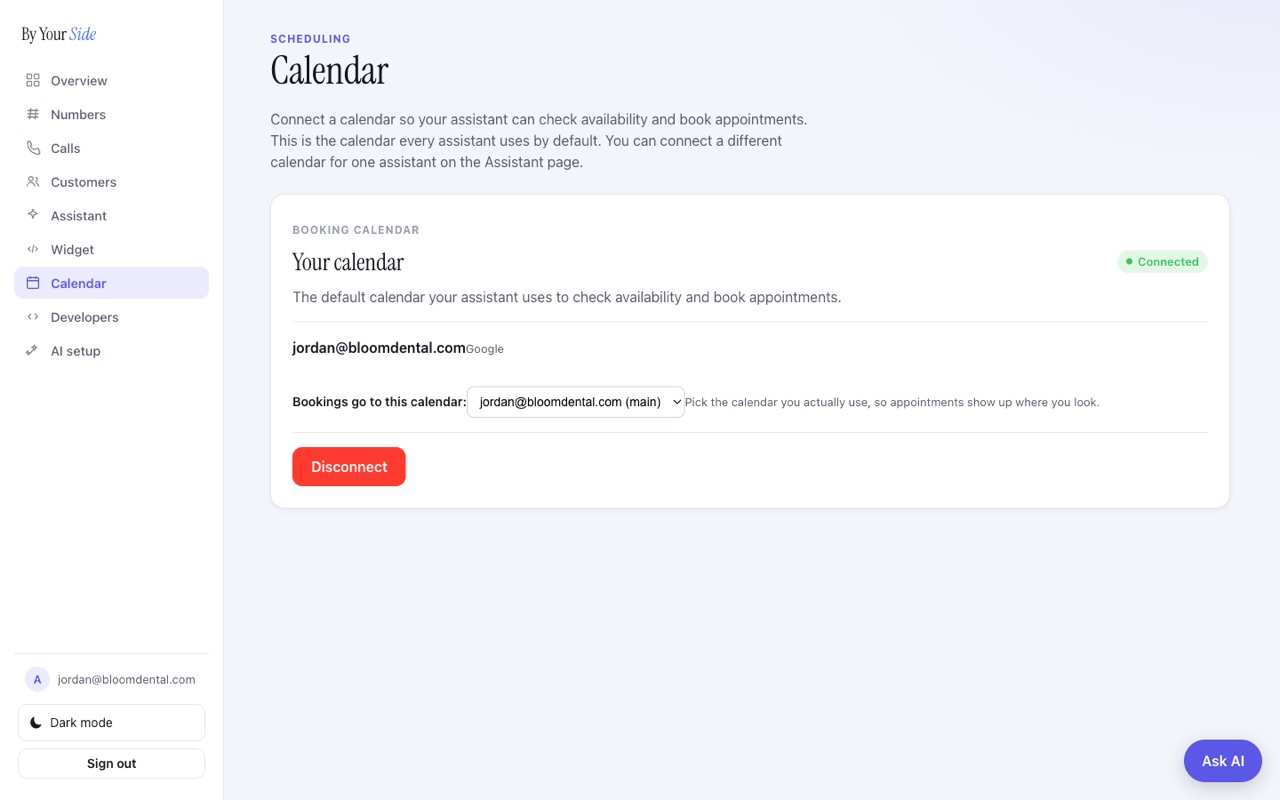
You connect a calendar in your dashboard, under Calendar. This is the default calendar that every assistant uses. You can point one assistant at a different calendar if you need to, which we cover further down.
What if I do not connect a calendar?
Your assistant will never invent availability. If no calendar is connected, it does not guess at open times or promise a slot it cannot see. Instead it takes a message, captures a way to reach the caller back, and lets you follow up. This is by design: the assistant only books against real, confirmed availability.
No calendar means no automatic booking. The assistant still answers questions and takes messages with a callback contact, so you never miss the caller. To let it book on its own, connect a calendar.
How do I connect a calendar?
- Open the Calendar pageIn your dashboard, go to Calendar. You will see a status showing whether a calendar is connected yet.
- Press Connect calendarIf nothing is connected, press Connect calendar. We open a new browser tab where you sign in to your calendar provider and approve access. Keep your dashboard tab open in the background.
- Sign in and authoriseIn the new tab, choose your provider, sign in, and approve the connection. This lets the assistant read your availability and add new appointments.
- Come back to the dashboardClose or switch back to your dashboard tab. The Calendar page checks the status again automatically and shows Connected along with the account you linked.
- Pick which calendar to write toMost people have more than one calendar in the same account (for example a work calendar and a personal one). Use the calendar picker to choose the one your assistant should write appointments to.
Which calendars work?
One connection covers all the common providers. You connect once, and your assistant can read availability and book on whichever account you signed in with.
| Provider | Works with By Your Side |
|---|---|
| Google Calendar | Yes, with one connection |
| Outlook / Microsoft 365 | Yes, with one connection |
| Apple / iCloud Calendar | Yes, with one connection |
You choose the provider when you sign in during the connect step. There is nothing extra to set up for each one.
Can a single assistant use its own calendar?
Yes. The calendar you connect on the Calendar page is the account-level default: every assistant uses it unless you say otherwise. If one assistant needs a different calendar, for example a second location or a different team member, you can connect a separate calendar for that assistant on its own page.
- Account default: set once on the Calendar page, used by all assistants.
- Per-assistant override: set on the assistant itself, used only by that assistant.
To set an override, open your assistant and connect a calendar there. When an assistant has its own calendar, it uses that one and ignores the account default.
How do I disconnect a calendar?
On the Calendar page, press Disconnect and confirm. Your assistant stops checking availability and booking right away, and goes back to taking messages instead. Your existing appointments on your calendar are not changed. You can connect a calendar again at any time.
After you disconnect, booking stops. Until you connect a calendar again, the assistant will take a message rather than offer or confirm a time.
Common questions
Do I need a separate connection for Google and Outlook?
No. One connection covers Google, Outlook, and Apple calendars. You only need to connect a second calendar if you want a specific assistant to write to a different account.
Will the assistant ever double-book me?
No. It reads your live availability before offering a time and books straight onto your calendar, so it will not offer a slot you are already busy in.
What happens to bookings if I disconnect?
Appointments already on your calendar stay exactly as they are. Going forward, the assistant takes messages instead of booking until you connect a calendar again.
Can the assistant make up a time if my calendar is down?
No. If it cannot see real availability, it does not guess. It takes a message and a callback contact so you can follow up.
Where do I manage all this?
Everything lives on the Calendar page in your dashboard: connect, pick which calendar to write to, and disconnect. Per-assistant calendars are set on the assistant itself.