Documentation
Phone numbers
Every By Your Side number is answered by one of your assistants. This page covers ordering a number by area, choosing which assistant picks it up, setting how calls are handled, and releasing a number you no longer need.
How do numbers work?
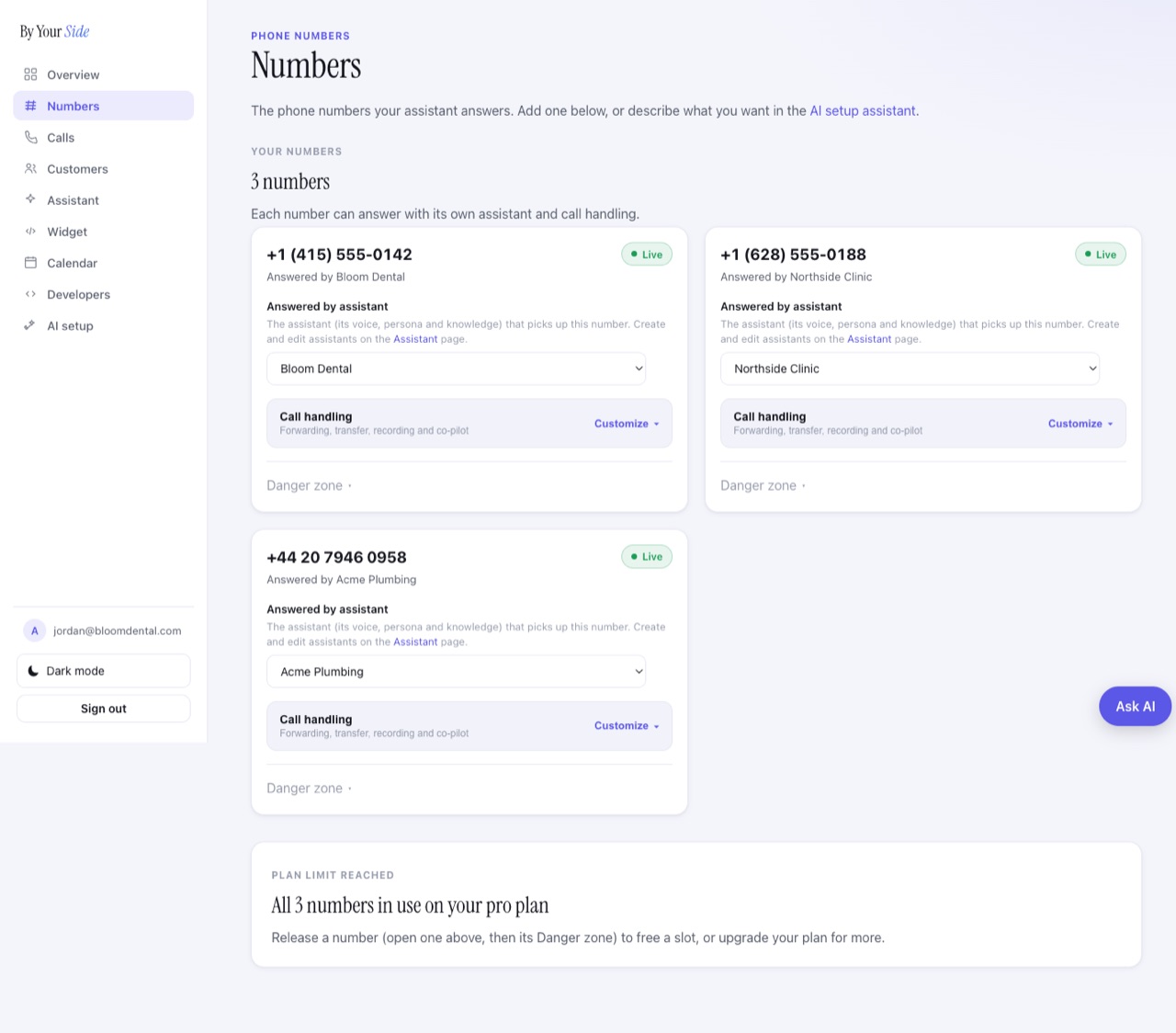
Each phone number you own is answered by one assistant: its name, voice, persona, and business knowledge. You manage your numbers on the Numbers page in your account. Each number shows its status, which assistant answers it, and an expandable Call handling section for routing.
A number is either Live (a green dot, ready to take calls) or Pending (still being set up by the carrier). A new number is usually Pending only briefly, then turns Live on its own.
How many numbers can I have?
Your plan includes a number allowance. When you reach the cap, the Get a new number option is replaced by a note that says all your numbers are in use. To add another, release one to free a slot, or upgrade your plan.
| Plan | Numbers included |
|---|---|
| Starter | 1 number |
| Pro | 3 numbers |
| Business | 5 numbers |
How do I get a phone number?
You order a number by area: you pick a country and an area, and the carrier assigns you a number in that area. It is included in your package and is routed to an assistant automatically.
- Open Numbers and press Get a new numberOn the Numbers page, scroll past your existing numbers and press
Get a new number. - Choose a countryPick from the supported countries (United States, Canada, United Kingdom, Australia, New Zealand).
- Narrow it downFor the US and Canada you then choose a state / region. For the UK you choose a number type (such as Local, National, or Mobile).
- Choose an areaPick an area by its area code or city name. You can search the list to find the one you want.
- Confirm the purchaseA short confirmation appears (for example, "Get a number in this area?"). Press
Confirm purchase. The carrier assigns a number in that area and routes it to your assistant. - Wait for it to go LiveThe new number appears in Your numbers. It may show as Pending for a short while, then turns Live and is ready to take calls.
Can I pick a specific number?
No, and this is on purpose. You pick the area, not a specific number shown in a list. The carrier assigns a number in that area and reveals it to you only after the order. Not publishing a list of available numbers up front is an anti-spoofing measure: it makes it much harder for anyone to scrape and abuse numbers (for example, to fake a caller ID). You still get a real number in the area you chose.
Purchasing turns on after account setup. Before then you can browse countries and areas, but the Confirm purchase button is not active yet. If you see "Browsing only," your account setup is not finished.
Some countries need extra registration
A few areas require identity and address registration with the carrier before a number can be issued, so they are not instant self-serve yet. The US, Canada, Australia, and New Zealand are available to order right away.
How do I choose which assistant answers a number?
Each number has an Answered by assistant dropdown. Pick any assistant you have created and it saves on its own. The number's subtitle updates to "Answered by [name]." A number can also be left unassigned.
You create and edit assistants (their voice, persona, and knowledge) on the Assistant page. One assistant can answer several numbers, so you can share or split assistants across your numbers however you like.
How do I set up call handling?
Each number has an expandable Call handling section (press Customize). There you set how calls are answered (AI receptionist, ring your app first, or forward to a phone), whether the assistant can transfer a live caller to you, call recording, and the in-call co-pilot.
If you change nothing, a number uses your account defaults. The moment you change a setting, it becomes specific to that number. For the full walkthrough of every option, see Call handling and forwarding.
How do I cancel a number?
You release (cancel) a number from its card, behind a collapsed Danger zone so it cannot be clicked by accident. Releasing is deliberately a few steps, and it is final.
- Open the Danger zoneOn the number's card, open the Danger zone section.
- Press Release numberYou will see exactly what happens before you commit.
- Confirm you mean itPress
Yes, release it(orKeep numberto back out). - Type the number to confirmType the full number to unlock the final button, then press
Release.
Releasing is end-of-cycle and cannot be undone. The number is cancelled at the end of the current billing cycle, then it is gone. There is no refund. After you confirm, the card shows that the release is scheduled and the number ends when the cycle closes. Releasing also frees a slot in your plan's number allowance.
Common questions
How long until a new number works?
Usually only a short while. A new number appears as Pending, then turns Live on its own once the carrier finishes setting it up. If it stays Pending for a long time, contact support@byourside.ai.
Can two numbers use the same assistant?
Yes. One assistant can answer as many of your numbers as you like. Just pick the same assistant in the "Answered by assistant" dropdown on each number.
What happens if a number is unassigned?
A number with no assistant set has nothing to answer it. Pick an assistant from the dropdown so calls are handled. You create assistants on the Assistant page.
I am at my number limit. How do I add another?
Release a number you no longer need (open its card, then its Danger zone) to free a slot, or upgrade your plan for a larger allowance.
Will I get a refund if I release a number early?
No. A release takes effect at the end of the current billing cycle and there is no refund. The number keeps working until the cycle closes.