Documentation
Add the widget
The widget is a floating button for your site. Visitors can chat with your assistant or start a quick voice call, and it captures a callback contact. You add it with one line. Here is how.
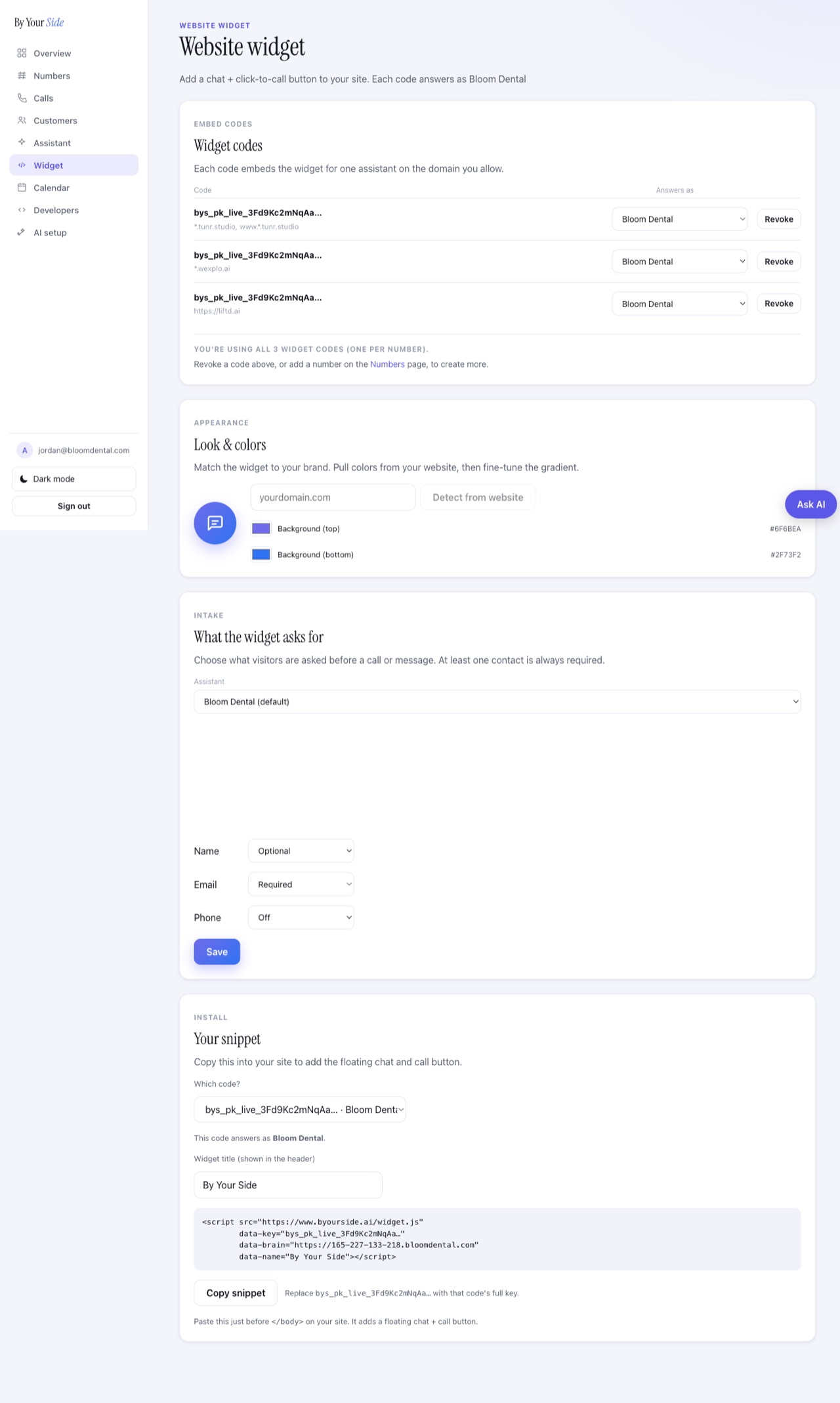
What you will end up with
A small button in the bottom-right corner of your site. When a visitor taps it, they can ask a question and get an instant answer from your business knowledge, or start a voice call. Before any call, the widget asks for their email or phone, so you always have a way to reach them back.
Step by step
- Create an assistantIn your account, open Assistant and set up the assistant that should answer. This is its name, voice, and business knowledge.
- Create a widget codeOpen Website widget, pick which assistant answers, and enter your website domain (for example
yourdomain.com). The www and root versions are both covered. Your full code is shown once, so copy it right away. - Match your colors and title (optional)On the same page you can pull your brand colors from your site or pick a gradient, and set the title shown at the top of the widget.
- Copy your snippetThe page builds your snippet for you, with your code and settings already filled in. Press Copy snippet. It looks like this:
<script src="https://www.byourside.ai/widget.js" data-key="bys_pk_xxxxxxxxxxxx" data-brain="https://api.byourside.ai" data-name="By Your Side"></script> - Paste it on your sitePaste the snippet just before the closing
</body>tag, so it loads on every page. See the notes below for your platform. - Test itOpen your site. The button appears at the bottom-right. Send a test message and try a short voice call. That is it, you are live.
Always copy the snippet from your dashboard. It fills in the correct code and URLs for your account. The example above uses a placeholder code (bys_pk_xxxx) and will not work as-is.
Where to paste it, by platform
- Plain HTML site: open your page template and paste the snippet right before
</body>. - WordPress: use a plugin like "WPCode" or "Insert Headers and Footers" and paste it in the Footer / before-body area. (Or in your theme's
footer.phpbefore</body>.) - Shopify: Online Store → Themes → Edit code →
theme.liquid, paste before</body>. - Squarespace: Settings → Advanced → Code Injection → Footer.
- Wix: Settings → Custom Code → add to the Body - end, on all pages.
- Webflow: Project Settings → Custom Code → Footer Code (before
</body>). - Google Tag Manager: new Tag → Custom HTML, paste the snippet, trigger on All Pages.
Good to know
- You get one widget code per number you own. Each code answers as one assistant, and you can split codes across assistants however you like.
- A code only works on the domain you allowed when you created it. Using it elsewhere will not load.
- The widget loads in an isolated layer, so it will not clash with your site's own styles.
Hand it to your developer or AI coding agent
If someone else (or a coding tool like Claude or Cursor) manages your site, you can paste this instruction and let them do it. Replace the placeholder code with your real one first.
Add the By Your Side widget to my website.
Paste this exact tag on every page, just before the closing </body> tag:

<script src="https://www.byourside.ai/widget.js"
        data-key="bys_pk_xxxxxxxxxxxx"
        data-brain="https://api.byourside.ai"
        data-name="By Your Side"></script>

Do not change the data-key or data-brain values. The site must be served
from the domain I allowed in my By Your Side dashboard.
Want the full technical details? See the developer reference.
Troubleshooting
- The button does not show up. Check the snippet is on the page (view source), that your code and the brain URL are filled in, and that you are visiting the same domain you allowed.
- Console says "data-key and data-brain are required". One of those two values is blank. Re-copy the snippet from your dashboard.
- Your colors are not applying. Colors must be valid hex values (like
#5b57e6). Anything else falls back to the default brand color. - Still stuck? Email support@byourside.ai with your site address and we will take a look.