Documentation
Calls, transcripts and customers
Every call your assistant handles is saved for you to review. Open any call for its summary, full transcript, and recording, and see the growing list of people the assistant has spoken with. Here is how to find and use it all.
Where do I see my calls?
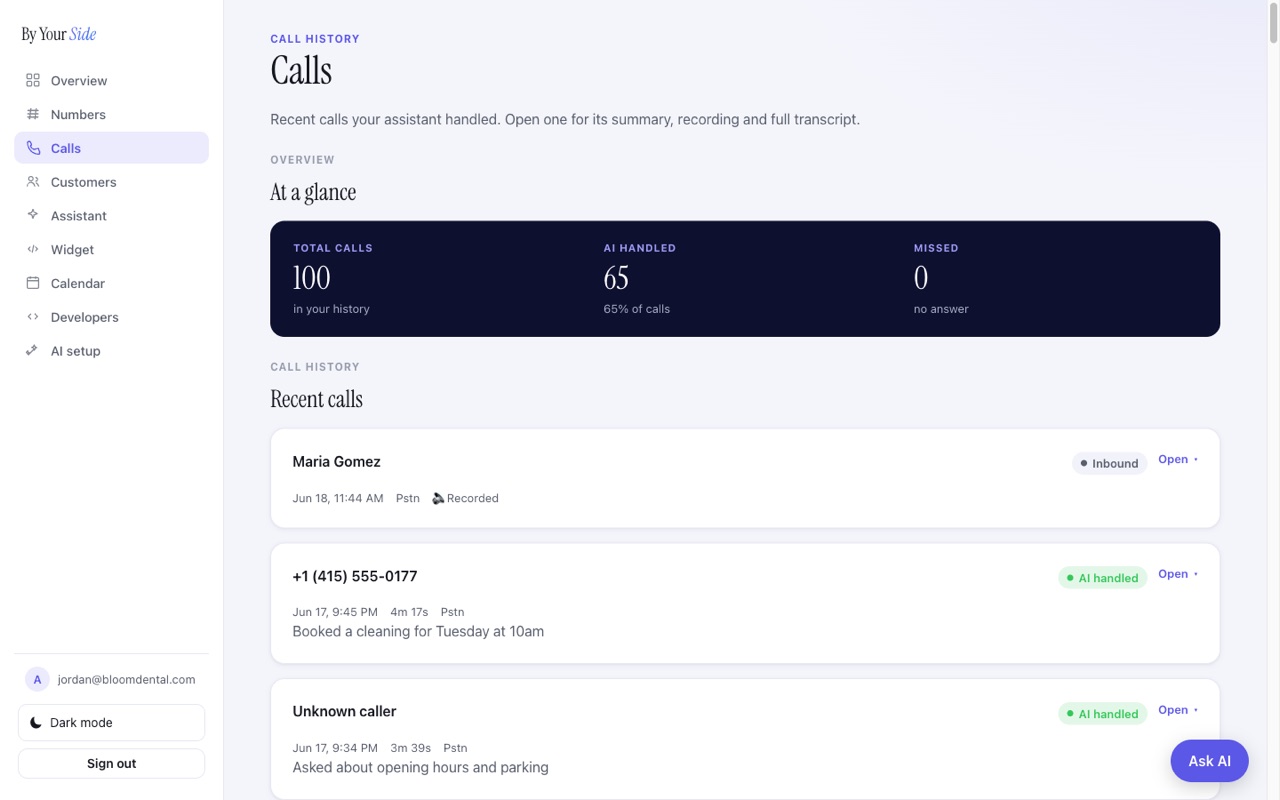
Open Calls in your dashboard sidebar. It shows the calls your assistant handled, newest first, with a quick At a glance summary at the top counting your total calls, how many the assistant handled, and how many were missed.
Each call is a card you can open. Closed, the card already tells you most of what you need:
- Who called, by name if known, otherwise their number or "Unknown caller".
- A status badge: AI handled, Missed, Inbound, or Outbound.
- The date and time, and the call length.
- A 🔉 Recorded marker when the call was recorded.
- A short summary of what the call was about.
Calls that come in through your website widget show up here too, usually labelled as a website visitor. So your phone calls and your website calls live in one place. See the widget guide for how the widget works.
How do I open a call for the full details?
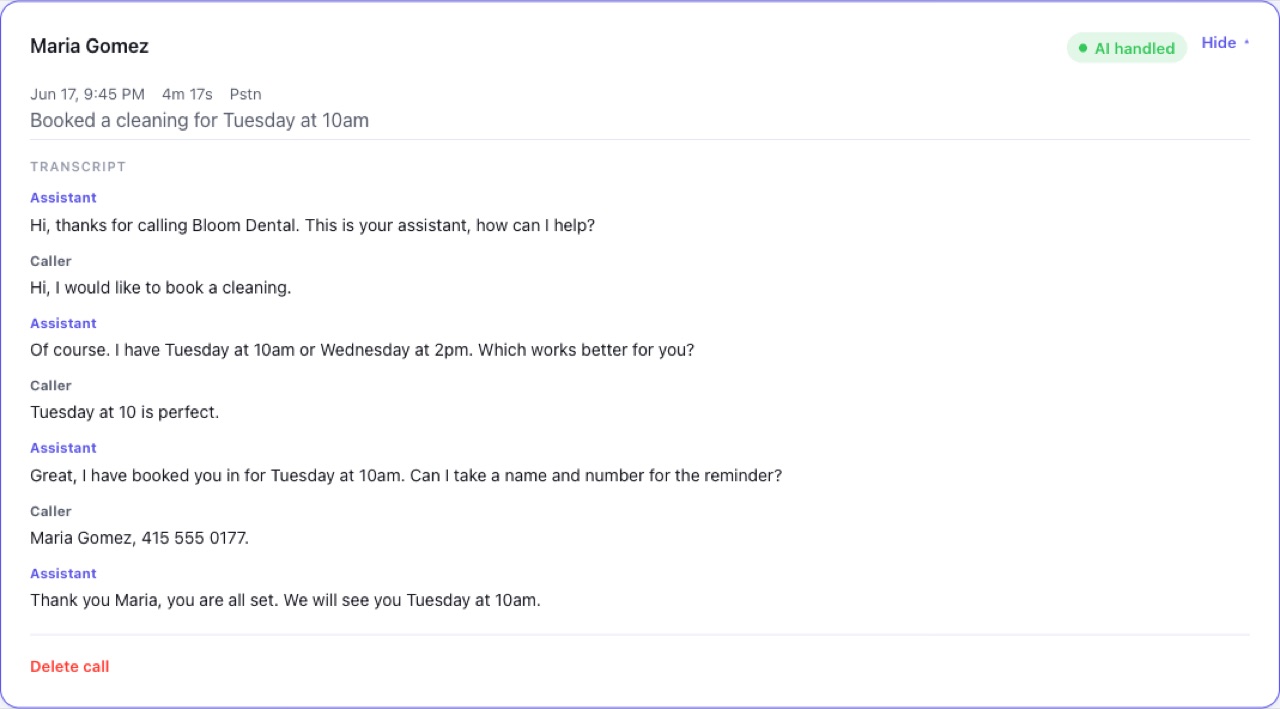
- Open the callOn the Calls page, press Open on any call card. It expands to show the recording (if there is one) and the full transcript.
- Read the summaryThe short summary on the card is the fastest way to know what a call was about, so you can scan your history without opening every one.
- Play the recordingIf the call was recorded, an audio player appears at the top of the opened card. Press play to listen back.
- Read the transcriptBelow the recording you get the full word-for-word transcript, with each line labelled by who was speaking.
- Close it againPress Hide to collapse the card back down.
Are calls recorded?
Only when you have turned recording on. A call shows the 🔉 Recorded marker and an audio player when a recording exists; otherwise you still get the summary and transcript, just no audio. Whether calls are recorded is controlled by your recording setting in Forwarding.
Reading the transcript
The transcript lists each turn of the conversation in order, with a label so you always know who said what:
| Label | Who it is |
|---|---|
| Assistant | Your AI receptionist speaking. |
| Caller | The person who called in, or your website visitor. |
| You | You, when a call was passed through to you. |
If a call has no transcript yet, the card simply says so. Some very short or missed calls may not have one.
How do I delete a call?
Open the call, then at the bottom of the expanded card press Delete call. You are asked to confirm, since this removes the call and its transcript. Press Delete to confirm or Cancel to keep it.
Deleting a call removes it and its transcript for good. There is no undo, so only delete a call you are sure you no longer need.
How does it remember customers?
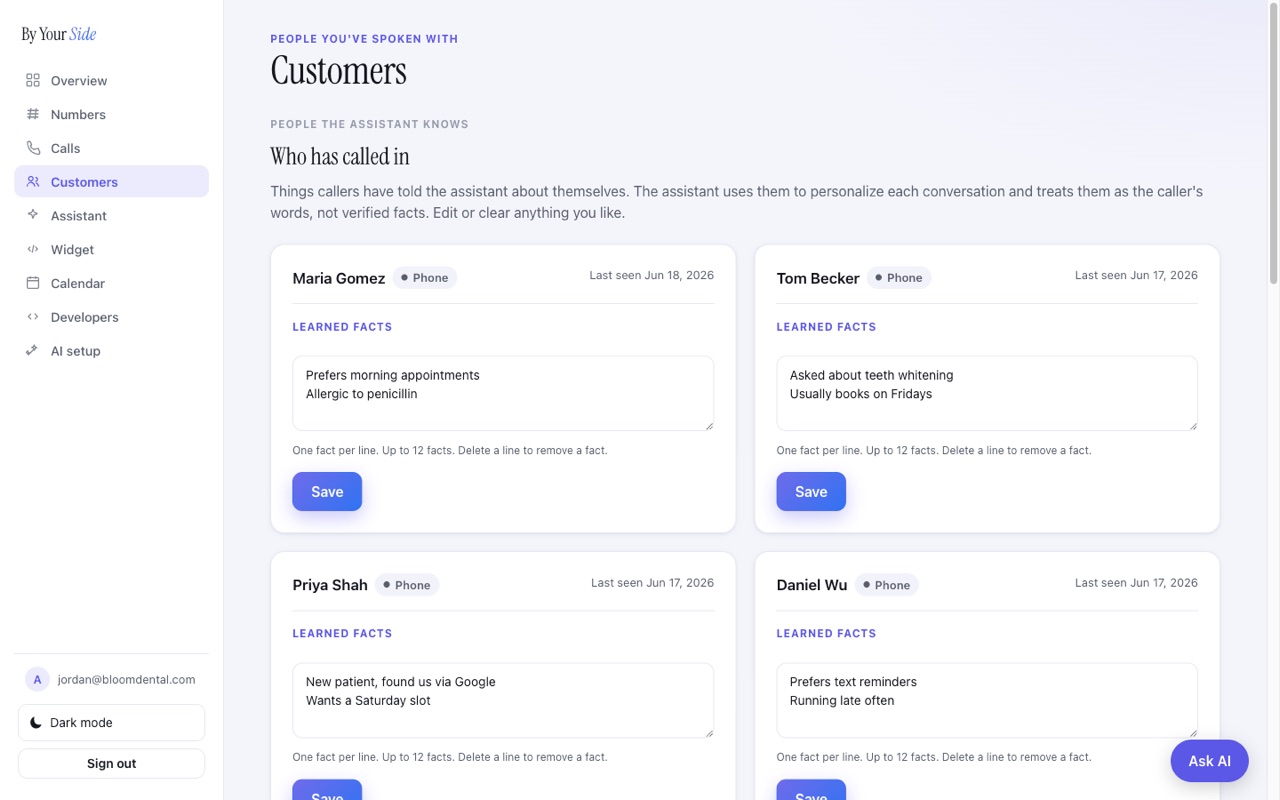
Open Customers in the sidebar. This is the list of people your assistant has spoken with. You do not build it by hand: it fills in on its own. Every time the assistant talks with someone, that person appears here, along with anything worth remembering for next time.
Each person is a card showing:
- Their name (or "Unknown caller" if they did not give one).
- How the assistant knows them: by phone, email, or as a website visitor.
- When they were last seen.
- Their learned facts, which you can edit.
What are learned facts?
Learned facts are short notes the assistant has gathered about a person from talking with them, for example "Prefers morning appointments" or "Has two dogs". The assistant uses them to personalise the next conversation and to recognise someone who has reached out before, so a returning caller does not have to repeat themselves.
These are treated as the caller's own words, not verified facts. The assistant never assumes a caller's claim is true just because it was said, and you stay in control of what is kept.
How do I edit learned facts?
- Open the personOn the Customers page, find the person whose facts you want to change.
- Edit the factsIn the Learned facts box, write one fact per line. Add a line for a new fact, edit a line to change one, or delete a line to remove a fact. You can keep up to twelve facts per person.
- SavePress Save. A Saved note confirms it. From then on, the assistant uses your edited list.
Is this data private to me?
Yes. Your calls, recordings, transcripts, and customer list are your own data, tied to your account and visible only to you when you are signed in. You can edit a person's facts or delete a call at any time.
Common questions
Why does a call have no recording?
Because recording was off for that call. You still get the summary and transcript. To record future calls, turn on the recording setting in Forwarding.
Do website calls show up in my Calls list?
Yes. Calls started from your website widget appear in Calls alongside your phone calls, usually labelled as a website visitor, with the same summary, transcript, and recording.
Who fills in the Customers list?
The assistant does, automatically. Every person it speaks with is added, with any facts it picked up. You only step in if you want to edit or clear something.
Will the assistant recognise a returning caller?
Yes. When someone the assistant has spoken with before reaches out again, it draws on their learned facts to pick up where things left off, so the conversation feels personal rather than starting from scratch.
Can I correct something the assistant got wrong about a customer?
Of course. Open Customers, edit the lines in that person's learned facts, and press Save. Removing a line deletes that fact entirely.