Documentation
Set up and teach your assistant
Your assistant answers calls and chats using your business knowledge. This guide shows how to name it, give it a voice, teach it about your business, and tune it over time so it answers more callers correctly every week.
What "teaching" your assistant means
Your assistant does not guess. It answers from the knowledge you give it: your hours, services, prices, policies, and a description of what you do. Teaching it simply means filling in that knowledge so it can speak for your business with confidence.
It will not make things up. By Your Side is built on a principle we call zero-trust grounding. Your assistant states only what you have given it or what it found on your own website. If it does not know something, it says so and offers to take a message or connect the caller to a person. It will never invent a price, a policy, an opening hour, or a service you do not offer. What you teach it is what it says, word for word, and nothing more.
How do I set up my assistant? Step by step
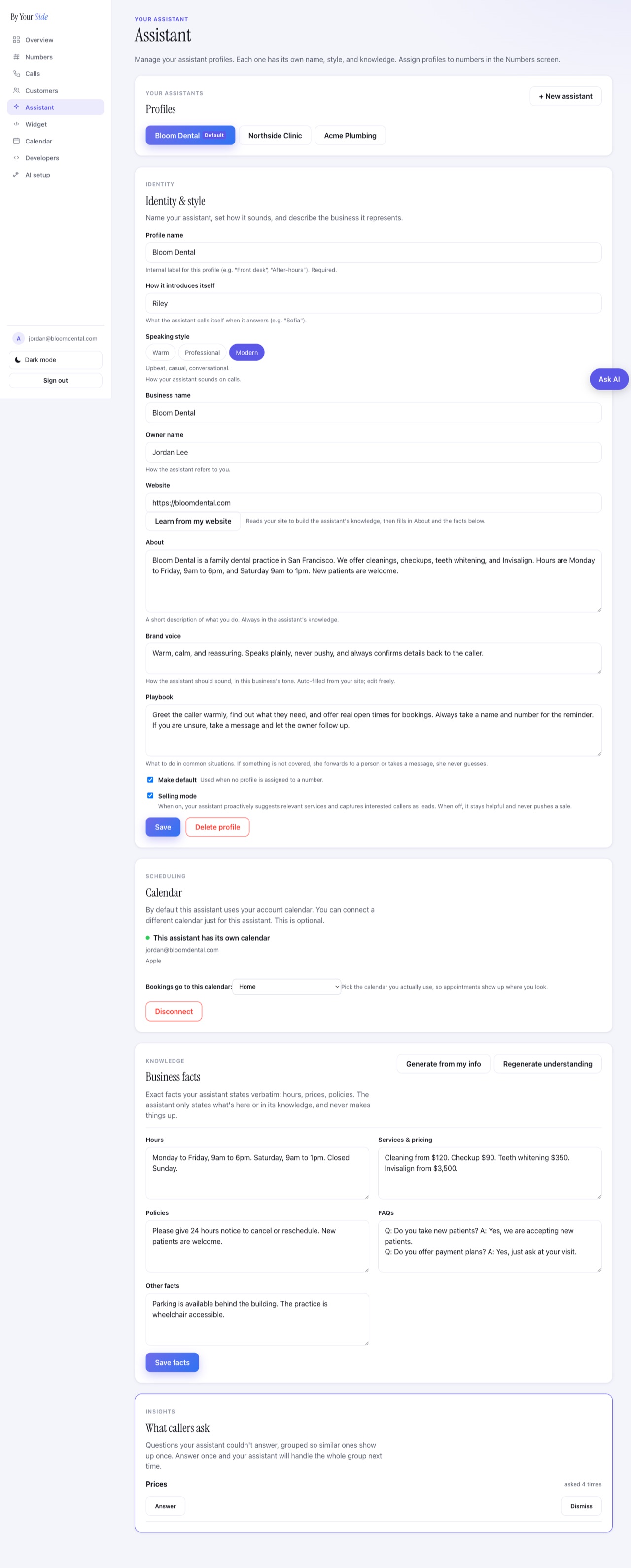
Open Assistant in your account and work top to bottom. You can save at any point and come back later.
- Create a profile and name itClick New assistant. Give the profile an internal name (for example "Front desk" or "After-hours") so you can tell your assistants apart. Then set How it introduces itself, which is the name callers actually hear when it answers (for example "Sofia").
- Pick a speaking styleChoose how your assistant sounds on calls. Pick the one that fits your brand (see the table below). You can change it any time.
- Add your business infoFill in your Business name, your Owner name (how the assistant refers to you), and your Website. Add a short About describing what you do. This is always part of its knowledge.
- Learn from your websiteWith your website address filled in, click Learn from my website. Your assistant reads your site, builds its knowledge from it, and drafts the About and the business facts for you. A progress bar shows it working. You need to save the profile once before this button is available.
- Review and edit the business factsCheck the Business facts grid: Hours, Services & pricing, Policies, FAQs, and Other facts. These are the exact facts your assistant states. Edit anything that is wrong or missing, then press Save facts.
- Set a default assistantTick Make default on the profile you want used when a number has no specific assistant assigned. Save, and you are ready to take calls.
Which speaking style should I pick?
The speaking style sets the tone of voice your assistant uses on calls. It does not change what it knows, only how it sounds.
| Style | How it feels | Good for |
|---|---|---|
| Warm | Friendly and caring, puts callers at ease. | Clinics, salons, hospitality, anywhere a personal touch matters. |
| Professional | Polished, concise, and businesslike. | Law, finance, B2B services, formal brands. |
| Modern | Upbeat, casual, and conversational. | Startups, creative studios, consumer brands. |
How do I teach my assistant about my business?
There are two ways, and you will usually use both. They feed the same knowledge, so you can mix them freely.
- Learn from your website. The fastest start. Your assistant reads your public pages and drafts the About and the facts for you. Review what it pulled in before relying on it.
- The business facts grid. The precise part. Hours, Services & pricing, Policies, FAQs, and Other are stated verbatim, so this is where you put anything that must be exactly right. Keep each fact specific: "Teeth whitening - $200" is far more useful than "various treatments available".
Two helpers sit above the facts grid. Generate from my info drafts the facts from what you have already entered. Regenerate understanding re-reads your site and refreshes the About, tone, and facts. Both produce a draft for you to review and save, and neither blanks out details you already added.
Always review before you save. Generated drafts are a starting point. You are the source of truth. Anything you correct in the facts grid is what your assistant will say.
What if a caller asks something it does not know?
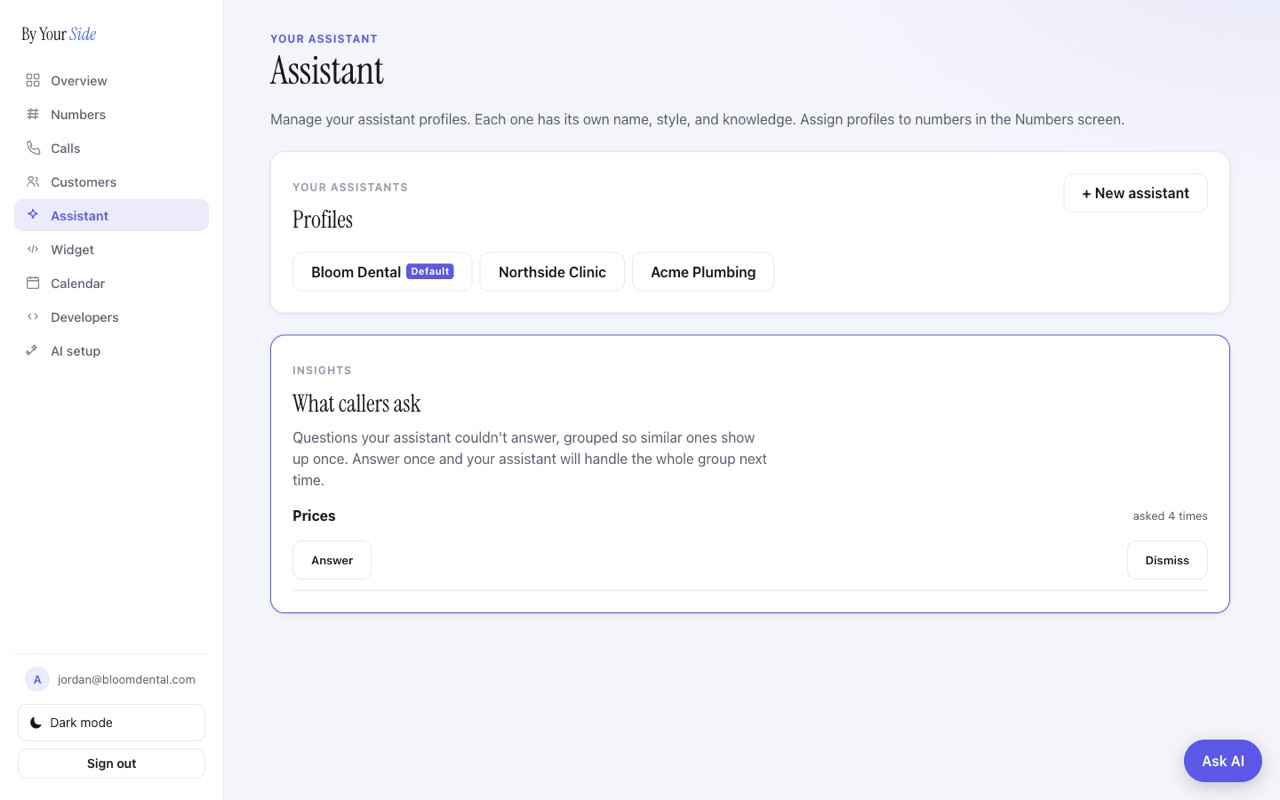
When your assistant cannot answer a question, it does not bluff. It tells the caller it will pass the question on, and it logs the question for you. Those questions show up in the What callers ask section at the bottom of the Assistant page. Similar questions are grouped together, so you see "Parking, asked 5 times" rather than five near-identical rows.
This is the learning loop. For each question you have two choices:
- Answer. Type the answer once. Your assistant folds it into its knowledge as an FAQ and handles the whole group on its own next time.
- Dismiss. Hide a question you do not want to answer. This does not create an FAQ and cannot be undone.
Use this weekly. Spend a couple of minutes clearing the list each week. Every answer you add is one more thing your assistant handles without you, so over time it gets steadily better at covering your real callers.
What does selling mode do?
Selling mode is an optional toggle on each profile. When it is on, your assistant proactively suggests relevant services and captures interested callers as leads, instead of only answering what it is asked. When it is off, it stays helpful and never pushes a sale.
Selling mode is still fully grounded. Even when promoting, your assistant only offers services and prices you have actually given it. It will never invent an offer or quote a price you did not set.
When should I create more than one assistant?
Each profile has its own name, speaking style, and knowledge, and you can assign profiles to different numbers from the Numbers screen. Create a second profile when you have:
- More than one business or brand answering on different numbers.
- A different setup for after-hours calls versus business hours.
- A dedicated line, such as sales versus support, that needs its own tone or knowledge.
If you only have one business and one number, a single default assistant is all you need.
Can it book appointments?
Yes, once you connect a calendar. By default an assistant uses your account calendar, and you can connect a different calendar just for one assistant from its Calendar section. With a calendar connected, your assistant checks real availability and books for callers. See the calendar guide to set this up. Until a calendar is connected, your assistant takes a message instead of booking, so it never promises a slot it cannot confirm.
The same assistant powers calls and your website
Whatever you teach an assistant here applies to both phone calls and the website widget. Set it up once, and the same name, voice, and knowledge answer visitors who chat or click to call on your site. To put it on your site, see the widget guide.
Tips for a great assistant
- Be specific. Exact prices, hours, and policies beat vague descriptions every time.
- Refresh after changes. Updated your website or your prices? Run Learn from my website again, then review the facts.
- Answer the gaps. Clear the What callers ask list weekly so fewer callers hit a question it cannot answer.
- Keep the About short and true. A clear two or three sentences about what you do grounds every answer.
- Test it. Call your own number or open your widget and ask it a few real questions to hear how it sounds.
Common questions
Will my assistant make up prices or policies?
No. It states only what you have given it or what it read from your own website. If it does not have an answer, it says so and offers to take a message or connect the caller to a person. It will not invent prices, hours, or services.
How does the assistant learn about my business?
Two ways: it reads your website when you click Learn from my website, and it uses the business facts you enter (Hours, Services & pricing, Policies, FAQs, Other). You can also answer caller questions in the What callers ask section, and those become part of its knowledge.
What happens to questions it could not answer?
They appear in the What callers ask section, grouped by topic. You answer once and your assistant handles that whole group on its own from then on, or you dismiss questions you do not want to answer.
Can I have different assistants for different numbers?
Yes. Create a profile for each, then assign profiles to numbers from the Numbers screen. The profile you mark as default answers any number that has no specific assistant assigned.
Does the assistant work on my website too?
Yes. The same assistant powers your phone calls and the website widget, using the same name, voice, and knowledge. See the widget guide to add it to your site.
Can it book appointments for callers?
Yes, once you connect a calendar. See the calendar guide. Without a calendar connected, it takes a message instead of booking, so it never promises a time it cannot confirm.